
I’ve been testing Chrome’s AI Mode for a few weeks now, and I have to admit — this is one of those rare features that makes me wonder how I lived without it.
The core problem Google is trying to solve is what they call “tab hopping.” You know the drill: you search for something, open a result, then realize you need to go back to search to refine your query, then open another tab, and before you know it you’ve got seventeen tabs open and you’ve forgotten what you were originally looking for.
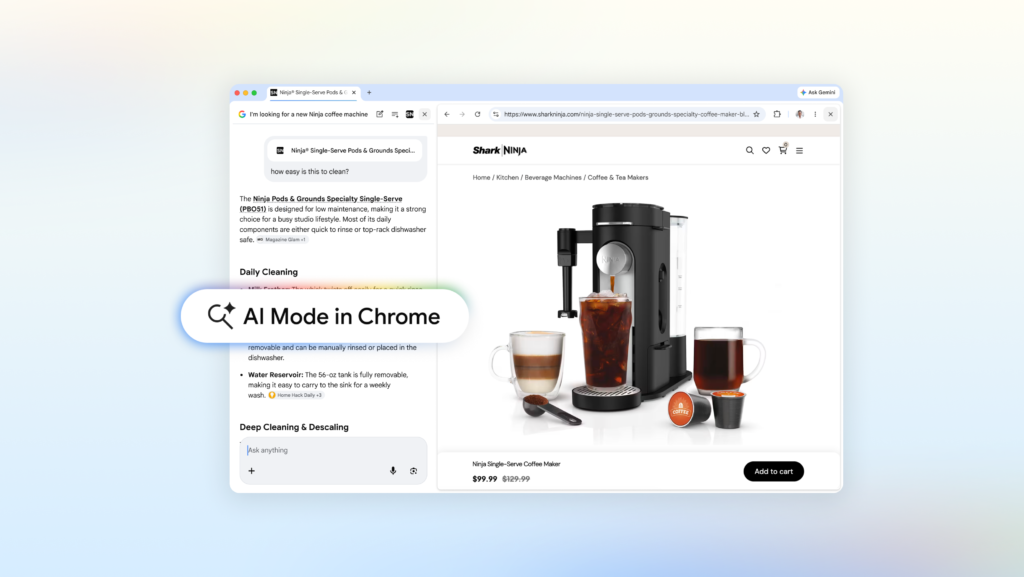
AI Mode in Chrome desktop now lets you click a link and have the webpage open side-by-side with the AI search interface. No tab switching. The AI stays there, ready for follow-up questions that can reference both the page you’re looking at and the broader web.
Side-by-side is surprisingly useful
I tried this with something practical: shopping for a compact espresso machine. In AI Mode, I described what I wanted — small footprint, can pull a decent shot, under $500. It gave me a handful of options with reasoning. I clicked one, and the retailer’s page opened right next to the AI panel.
Then I asked: “How easy is the drip tray to remove?” The AI looked at the product page and pulled in reviews from across the web. It told me the tray was a bit shallow and prone to overflow if you don’t empty it after every use. That’s the kind of detail that would normally require reading through dozens of reviews or watching YouTube videos.
Another tester I know used it for research on McLaren Racing’s pit crew training methods. He opened the official McLaren site in the side panel, then asked AI Mode to explain the difference between their F1 and Formula E team structures. The AI pulled context from both the open page and its general knowledge. He said it saved him at least 30 minutes of cross-referencing.
Searching across your open tabs
The other big addition is the ability to search across your existing tabs. On desktop or mobile, there’s a new plus menu in the search box on the New Tab page (or inside AI Mode itself). You can select recent tabs and add them as context for your query. It also accepts images and PDFs.
I tested this with a mess of tabs I had open for a stats midterm I was helping a friend study for. Class notes, lecture slides, a couple of academic papers. I dumped them all into AI Mode and asked for more examples to illustrate p-values. The AI used the context from those materials to give me examples that matched the same notation and difficulty level as the class notes. It even suggested a few relevant papers I hadn’t found.
For a more casual use case, imagine you’ve got several tabs open about hiking trails in your area. You can add those to AI Mode and ask for similar kid-friendly trails in a different location. The AI understands what “similar” means based on the pages you’ve already found.
What about Canvas and image creation?
Google also mentions that tools like Canvas and image creation are accessible within AI Mode. I haven’t spent enough time with those yet to form a strong opinion, but the idea is that you can generate a diagram or an image without leaving the search flow. It’s a nice add-on, but the side-by-side browsing and tab context features are the real stars here.
A few things I’d change
It’s not perfect. The side panel works well on a large monitor, but on a 13-inch laptop screen it feels cramped. I’d love to see a way to pop the panel out into its own window, or at least resize it more aggressively.
Also, the feature is Chrome desktop only for now. Mobile gets the tab search but not the side-by-side view. Given how many people browse primarily on phones, that feels like a gap.
And as with any Google AI feature, there’s the usual caveat: it’s experimental, it can get things wrong, and it works best when you’re asking questions with clear answers. Vague, open-ended queries can still produce weird results.
Bottom line
This is the kind of AI integration that actually improves how I use the web. It’s not flashy, it’s not trying to replace search — it’s just making the browsing experience less fragmented. If you’re on Chrome desktop, give it a shot. You might find yourself closing a few tabs.
Comments (0)
Login Log in to comment.
Be the first to comment!